Reduce GIF size by adjusting width, frame rate, color count, and duration without making the animation unreadable.
Test record and current workspace
This is a capture of the published workspace used for the guide. The record below separates what was tested, what was observed, and what still depends on the browser or device.
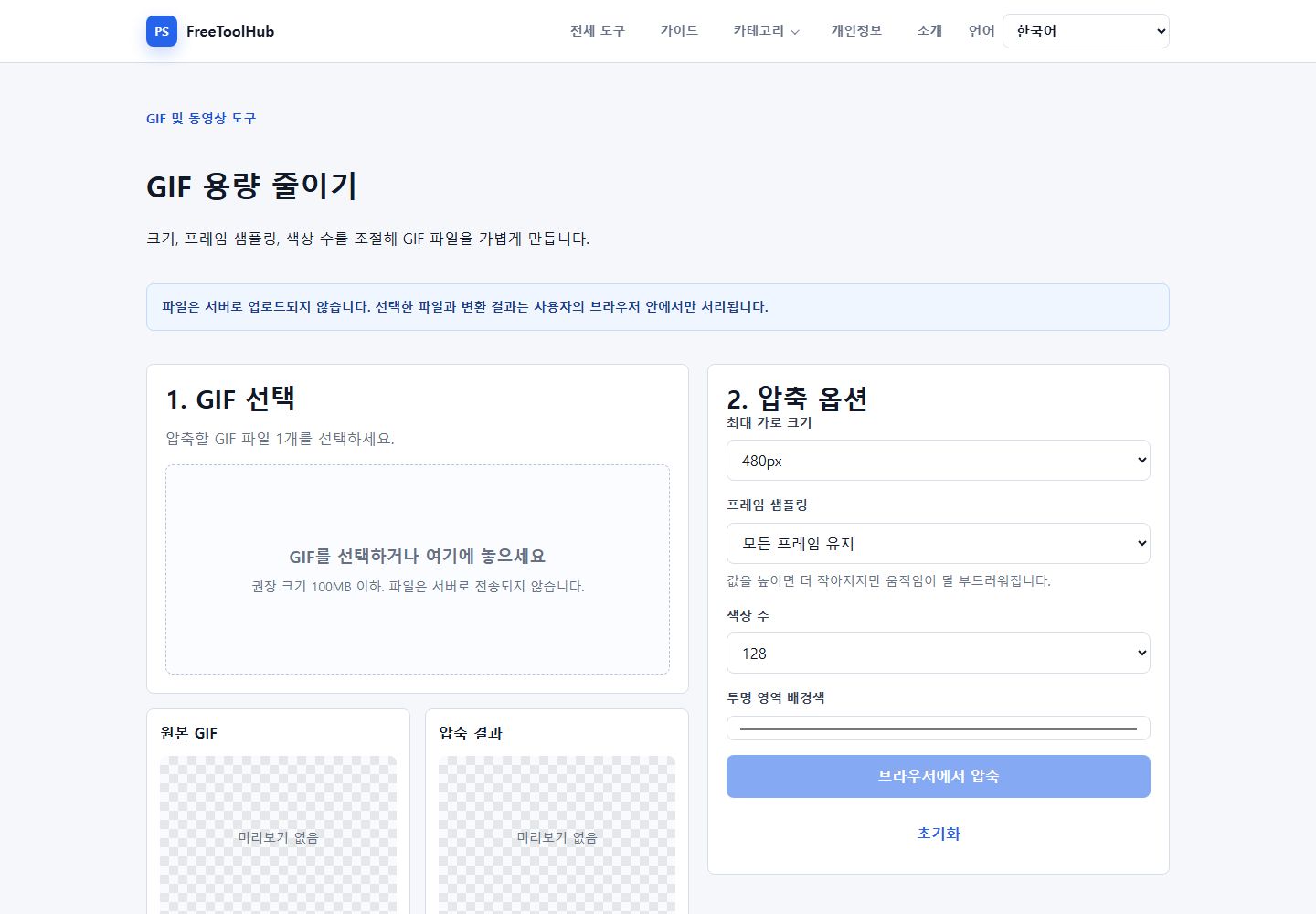
Current published workspace used while checking “Practical GIF optimization settings”.
Test environment
Chrome 126+ · Windows 11 · GIF frame decoding
Test case
FPS · palette · width · output bytes
Observed result
The published compressor provides width, frame sampling, color-count, transparent-background, original preview, and compressed preview controls in one workspace.
Known limit
Long or high-resolution GIFs consume substantial memory, and aggressive frame or color reduction can make motion choppy or produce banding.
Start with size and duration
The biggest GIF savings usually come from reducing canvas size and trimming unnecessary seconds.
Crop or shorten the source before converting.
Use a smaller width for chat and documentation.
Avoid converting long videos directly to GIF.
Then lower FPS and colors
Lower frame rate and color count can reduce size, but too much reduction makes motion choppy or banded.
Try 10 to 15 FPS for many screen recordings.
Use fewer colors for simple UI clips.
Keep more colors for gradients or photos.
Use video when GIF is too large
If the result is still too heavy, a short MP4 or WebM is often much smaller than a GIF.