Plan a batch conversion so many images can be converted locally without wasting time or memory.
Test record and current workspace
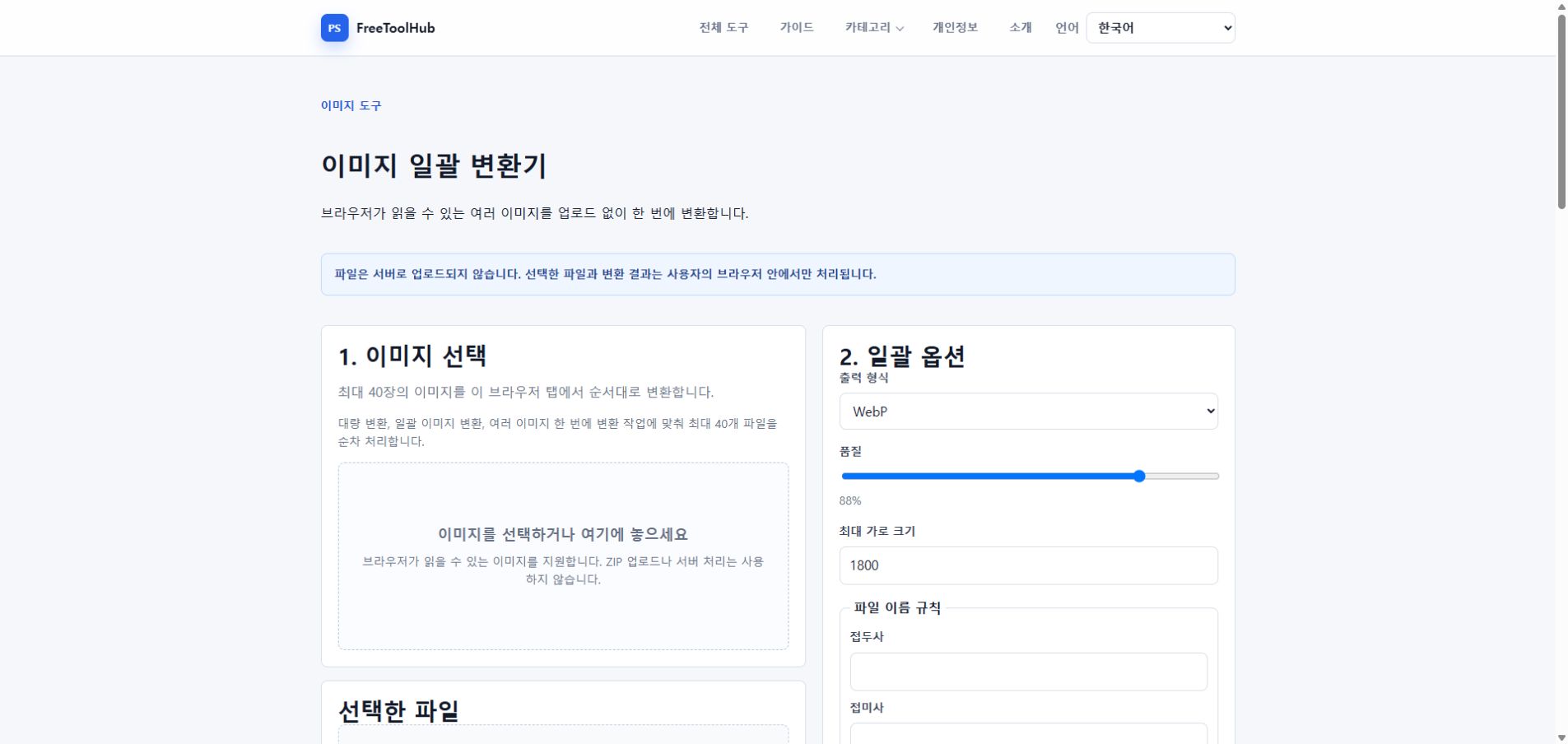
This is a capture of the published workspace used for the guide. The record below separates what was tested, what was observed, and what still depends on the browser or device.
Current published workspace used while checking “A safer workflow for bulk image conversion”.
Test environment
Chrome 126+ · Windows 11 · 2 / 10 / 40 images
Test case
2–50 images · resize · quality · ZIP
Observed result
Two, ten, and forty-image sets were converted with WebP output, quality 88, a maximum width of 1800px, filename rules, and ZIP export.
Known limit
Large batches are limited by available browser memory; one unreadable file can be skipped while the remaining files continue.
Start with a small sample
Before converting dozens of files, test the target format, resize rule, and quality setting on two or three images.
Check file size after conversion.
Confirm image dimensions.
Make sure transparent images use a compatible output format.
Use practical presets
Most web batches work better with a maximum width and a clear output format.
Use WebP for web delivery when accepted.
Use JPG for broad compatibility.
Use PNG for transparency or sharp interface images.
Avoid memory pressure
Local batch conversion uses browser memory, so very large sets should be processed in smaller groups.
Keep source files organized before converting.
Download results after each batch.
Refresh the page if a very large batch slows down the tab.